


Important
Lumary Compatibility: This version of the AU Healthcare Package is compatible with the following Lumary packages. These Lumary packages must be installed prior to updating the AU Healthcare Package.
Contact Lumary for the following package upgrades.
- Lumary: 20.3.9 or greater
- Enrite Services: 1.307
Skedulo Compatibility: This version of the AU Healthcare Package is compatible with the following Skedulo packages. This version of the Skedulo Package must be installed prior to updating the AU Healthcare Package.
- Skedulo: 102.56 or greater
What’s New
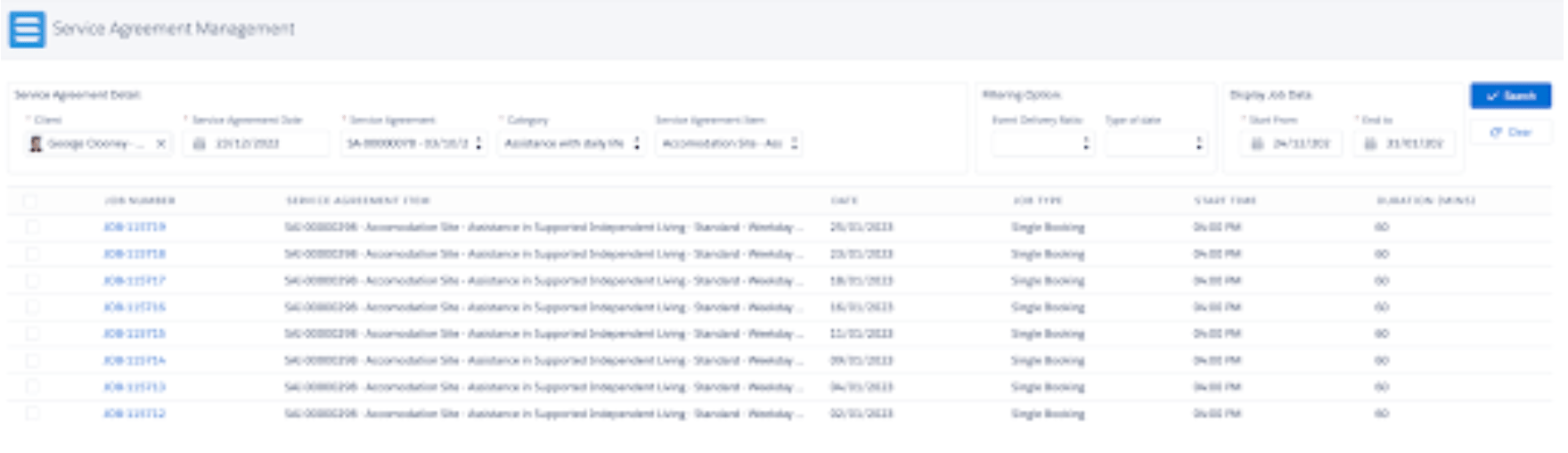
Enhanced the Service Agreement Console (SAM) to enable easier identification of Jobs and the replacement of these.
The SAM console is enhancement include:
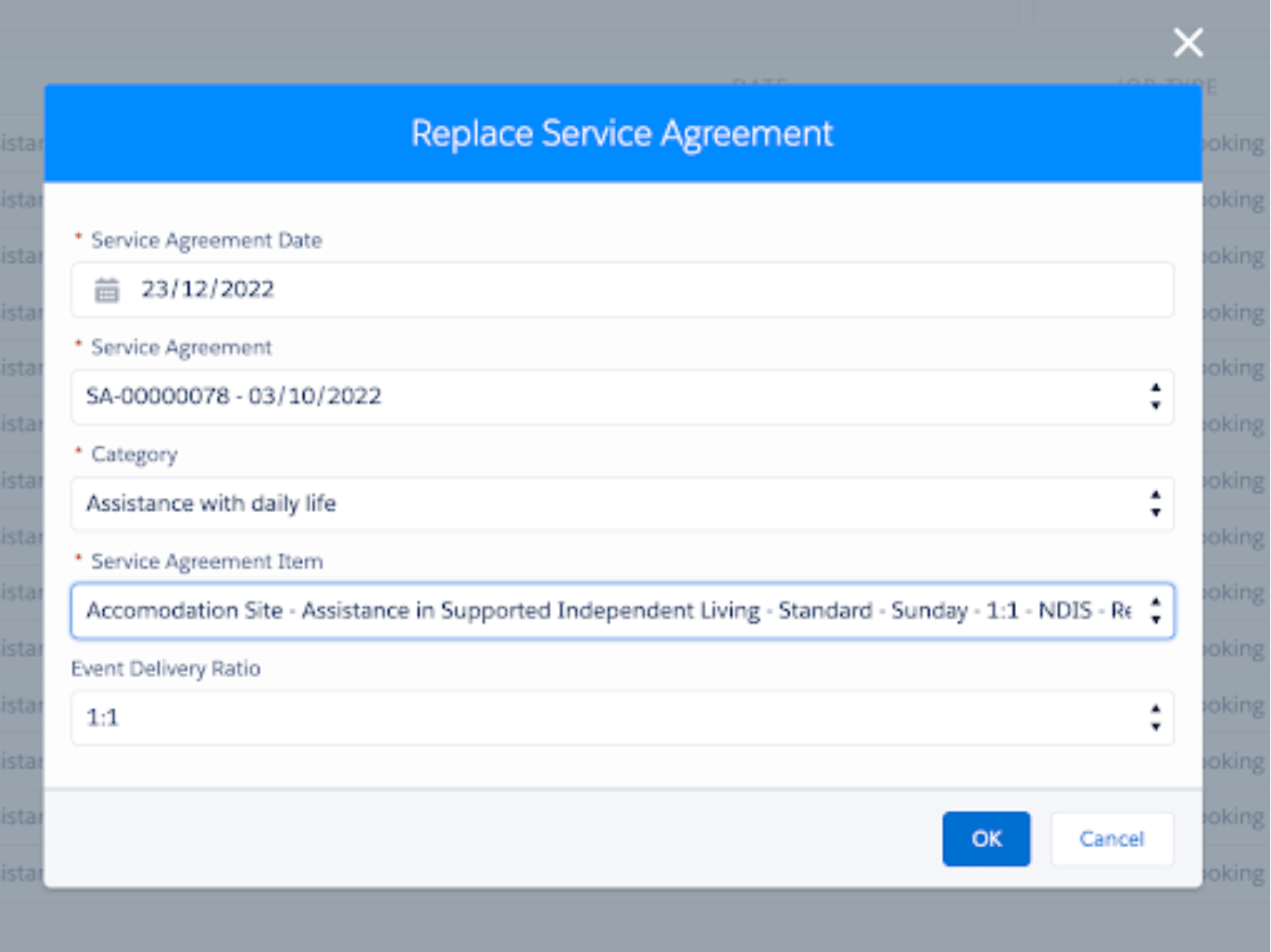
- New “Service Agreement” dropdown display in Search section, format [SA id – SA end date]
- The new column “Service Agreement Item” is displayed in table, format [SAI ID- Site – Description]
- When SAI is too long, format: name is truncated and displayed as [ … ]
- New “Service Agreement” field displayed in popup, format [SA ID – date
- Divided into 3 sections : Service Agreement Options, Filtering Options, Jobs to Display
- Updated search flows
- Flow 1: Input Service Agreement -> [restrict to item ] select Category (mandatory) (ex: Uncategory) -> click on Search
- Flow 2: Input SA -> [ NOT restrict to item] select Category (mandatory) (ex: Assistance with daily life ) -> select Service (mandatory) -> Site (mandatory) -> click Search
——————————————————————————————————-
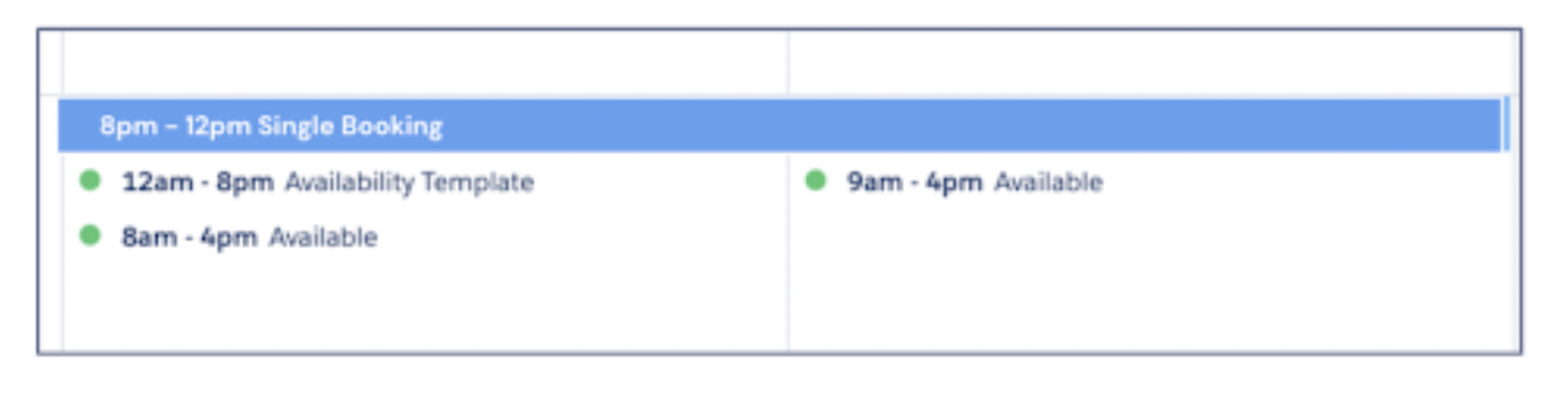
Show end time of jobs that expand over two days on Scheduling Console
——————————————————————————————————-
A new setting to enable changing the default 7 Days settings for a Roster Period in Scheduling Console.
- Set up < Custom Settings < Skedulo Configs < Skedulo Healthcare Scheduling Settings <Default_Roster_Period
- Value: Week/Fortnight/Month
- Default value: Week
——————————————————————————————————-
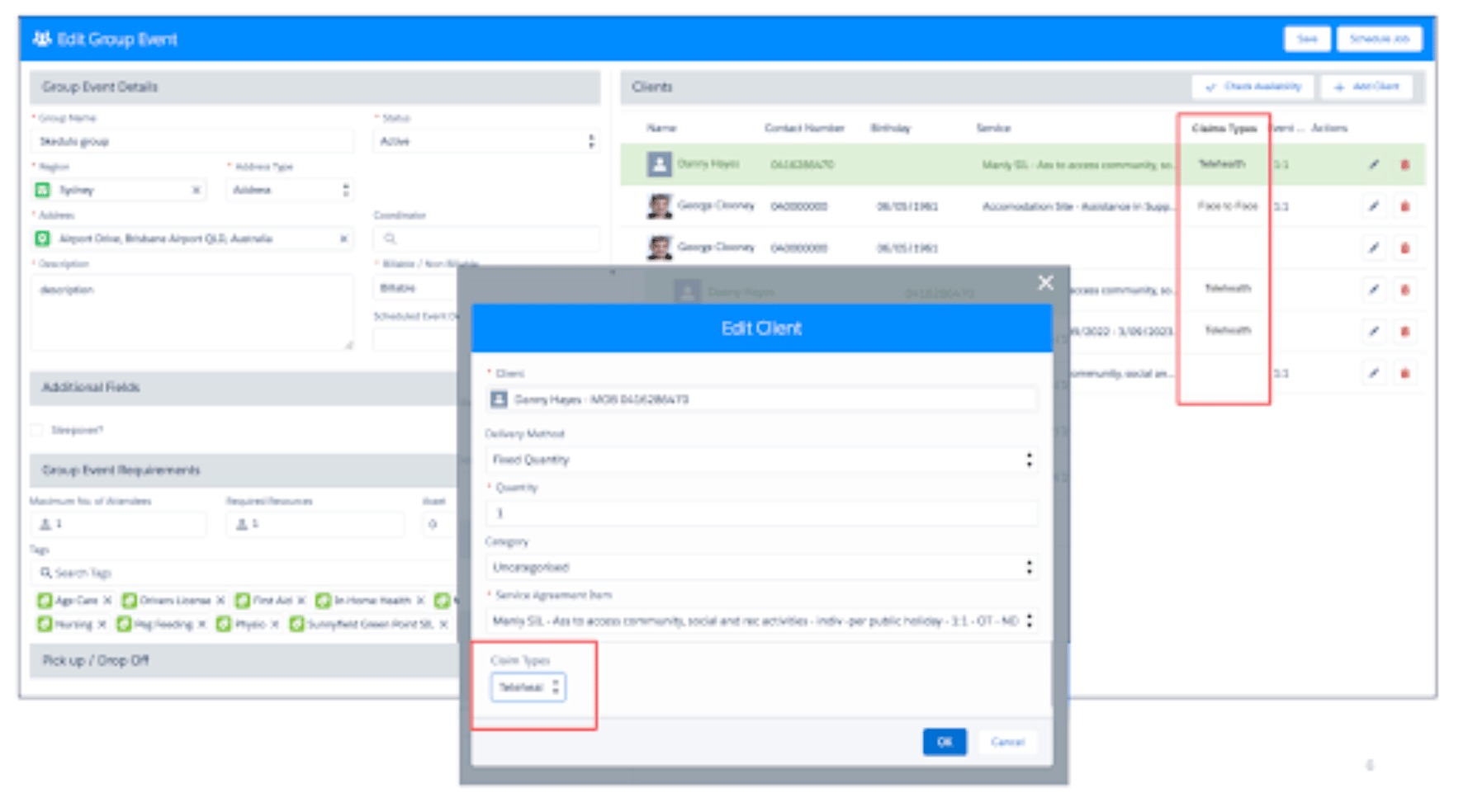
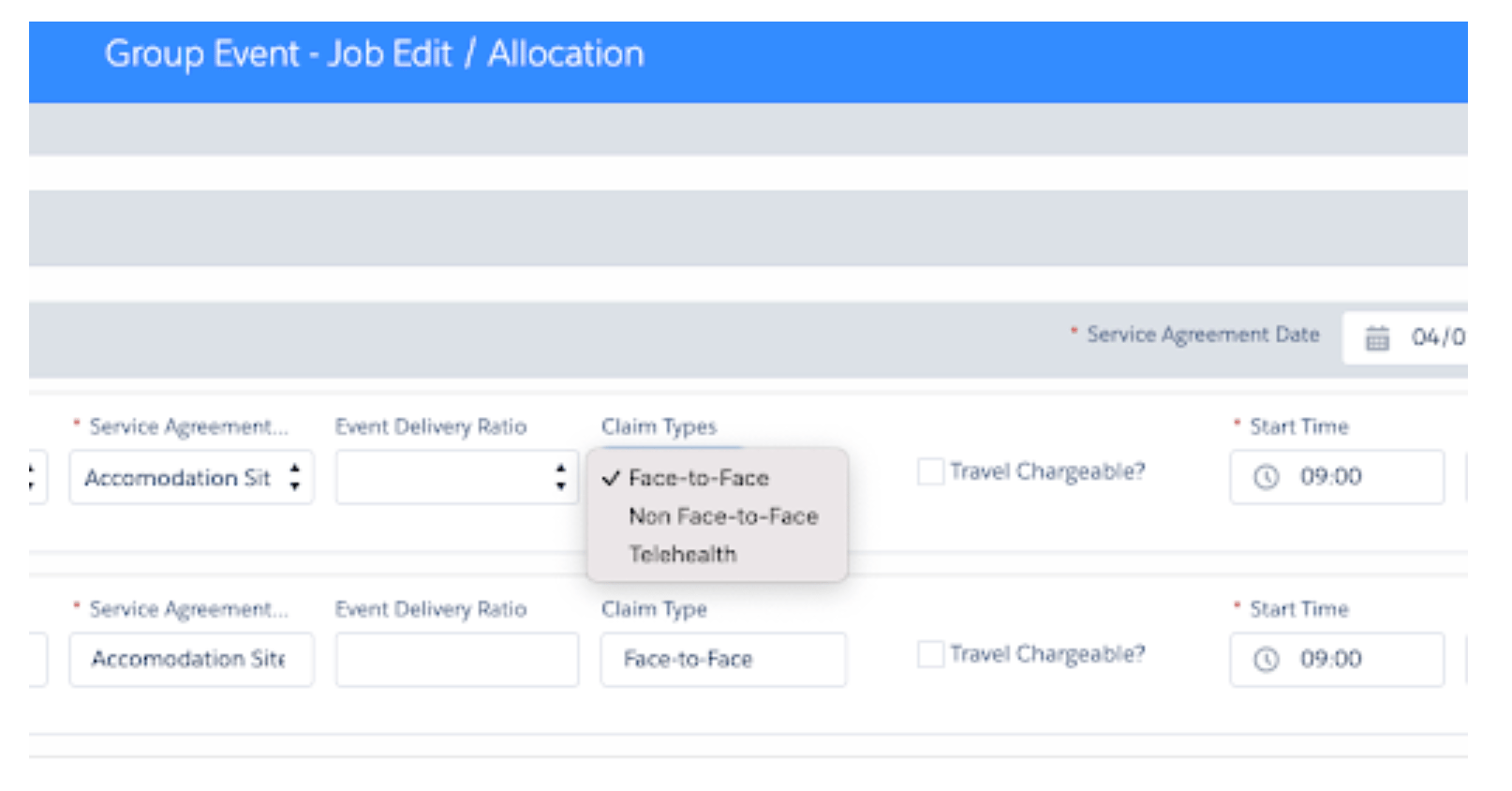
On Group Events there is now the ability to select a Claim Type when adding a Client on a Group Event Template which will flow through to the Group Event Job Modal
——————————————————————————————————-
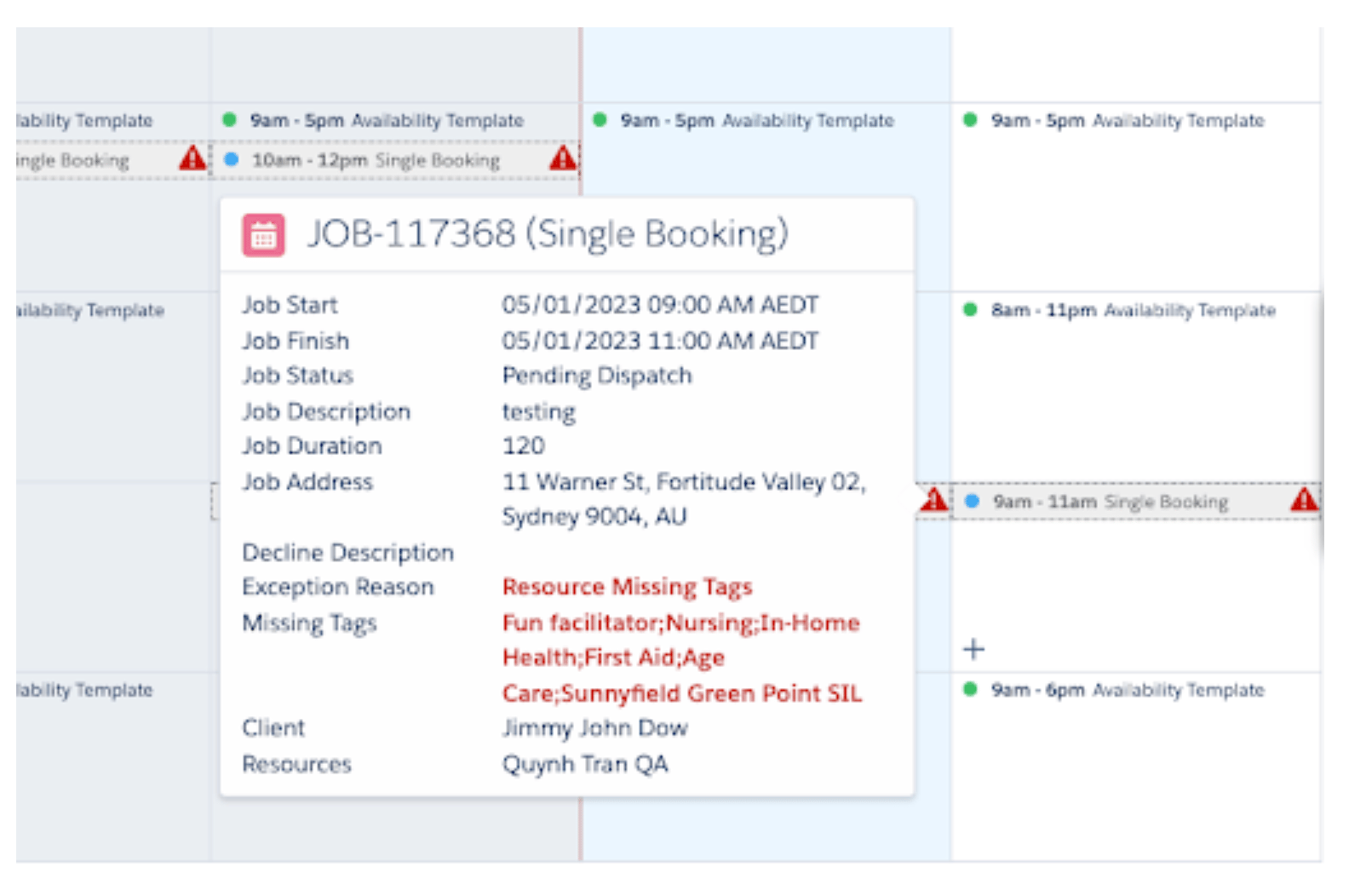
There is the ability to show the missing tags in the hover when the exception is Resource Missing Tags. This list of missing tags will show only if the custom setting is true.
- To enable the setting go toSet up < Custom Settings < Skedulo Healthcare Scheduling Settings <Allow_Show_Missing_Tag
——————————————————————————————————-
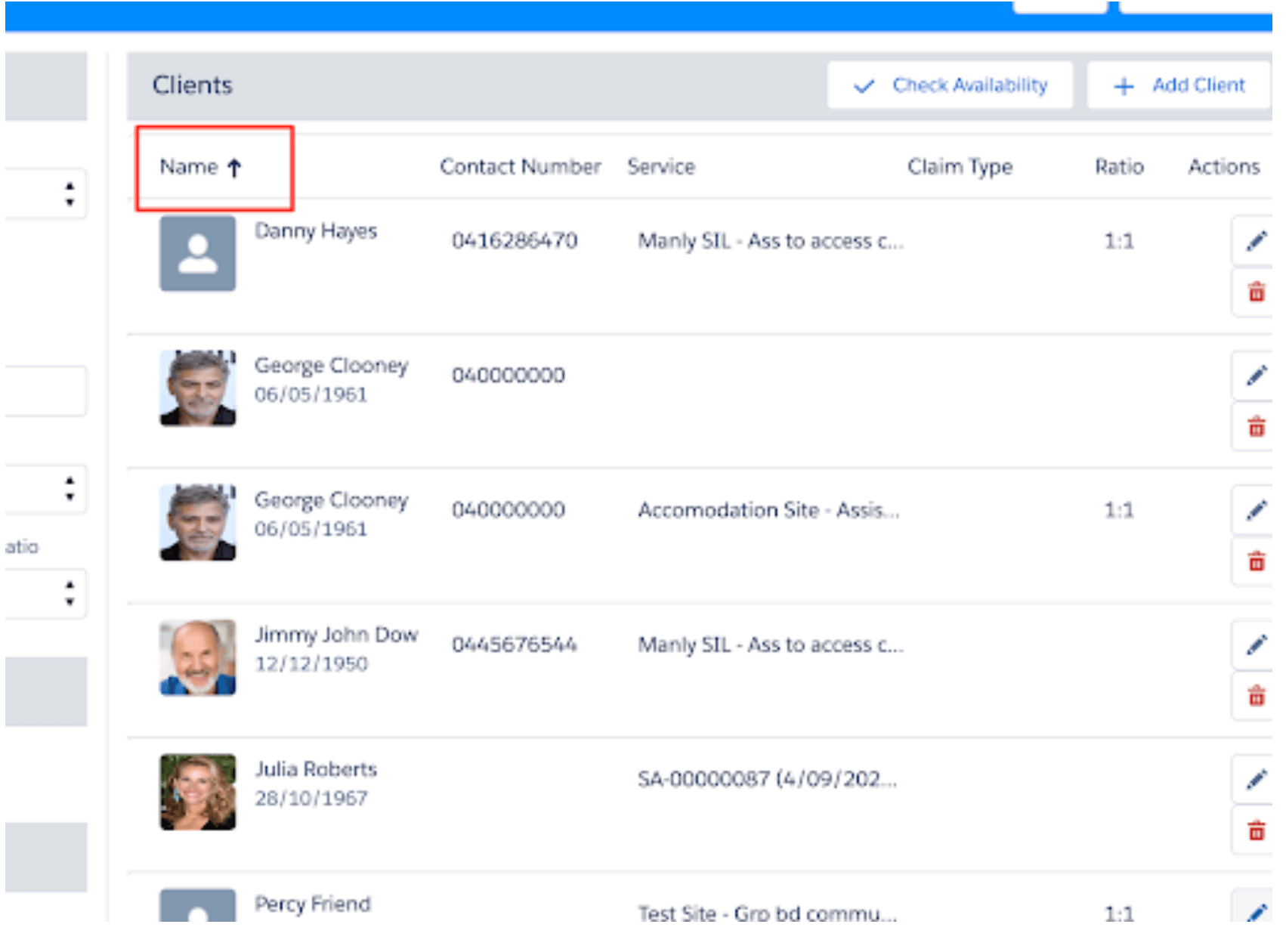
There is the ability to sort the clients A-Z with a sort button in Group Event Template
Issues Fixed
- An Issue has been fixed where Unallocated row was not highlighted for holiday’s
- Scheduling Console Error message was being displayed when selecting a template while the Enable_Base_Template_Approval_Process setting is enabled
- A new client record was being created when scheduler updates an existing client in the Group event template
- Job Duration – when Scheduler updates the job duration and changes it back to the previous time, the start and end time values will show correctly.
Important
Additional Install Component: If you are upgrading from version 1.139 or less this version of the AU Healthcare Package requires the installation of an additional component. Installation is required to enable certain core functionality
Refer to the AUHC Additional Install Component page for further details and steps to perform the installation.
Manual Installation Links
Sandbox: https://login.salesforce.com/packaging/installPackage.apexp?p0=04t8W000003BOCd&isdtp=p1
Production: https://test.salesforce.com/packaging/installPackage.apexp?p0=04t8W000003BOCd
Please note: You must be a Salesforce Administrator to install this package.