


Important
Lumary Compatibility: This version of the AU Healthcare Package is compatible with the following Lumary packages. These Lumary packages must be installed prior to updating the AU Healthcare Package.
Contact Lumary for the following package upgrades.
- Lumary: 19.3.5 or greater
- Enrite Services: 1.307
Skedulo Compatibility: This version of the AU Healthcare Package is compatible with the following Skedulo packages. This version of the Skedulo Package must be installed prior to updating the AU Healthcare Package.
- Skedulo: 102.56 or greater
What’s New?
The Time of Day check is now available when updating a recurring job series using the Apply to all function. As per the last release notes where the ability to run the time of day check when creating a recurring series the following rules will apply.
When Services_Time_Of_Day_Check is set toWarning
- There will initially be a check on whether the original job of the series violates Time of Day. If there is a violation, a warning will be displayed, you can either choose to ignore the warning and continue the recurring job update process, or accept the warning and stop the process. If you choose to ignore the warning, you can select how to proceed with the Time of Day violations on future jobs
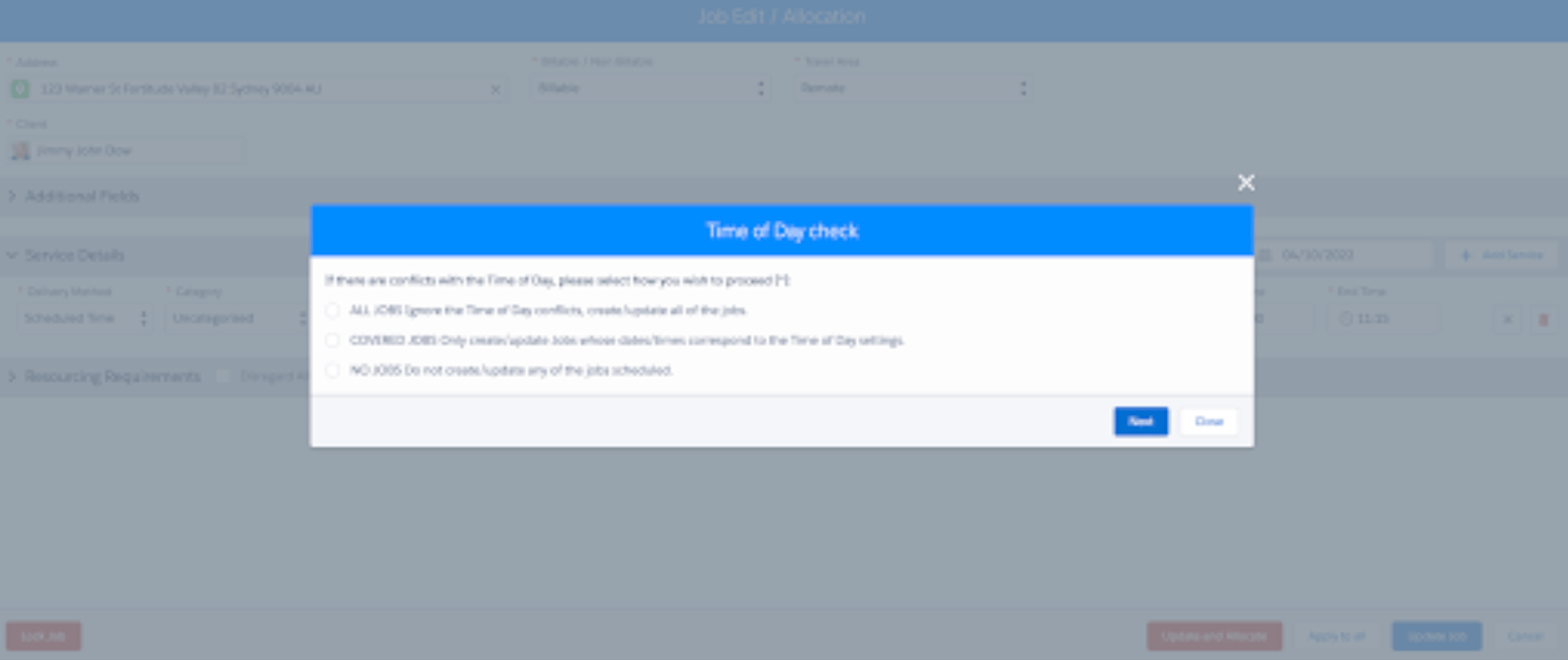
- ALL JOBS: Ignore the Time of Day conflicts, update all of the jobs.
- COVERED JOBS: Only update Jobs whose dates/times correspond to the Time of Day on the related Service
- NO JOBS: Do not update any of the jobs scheduled
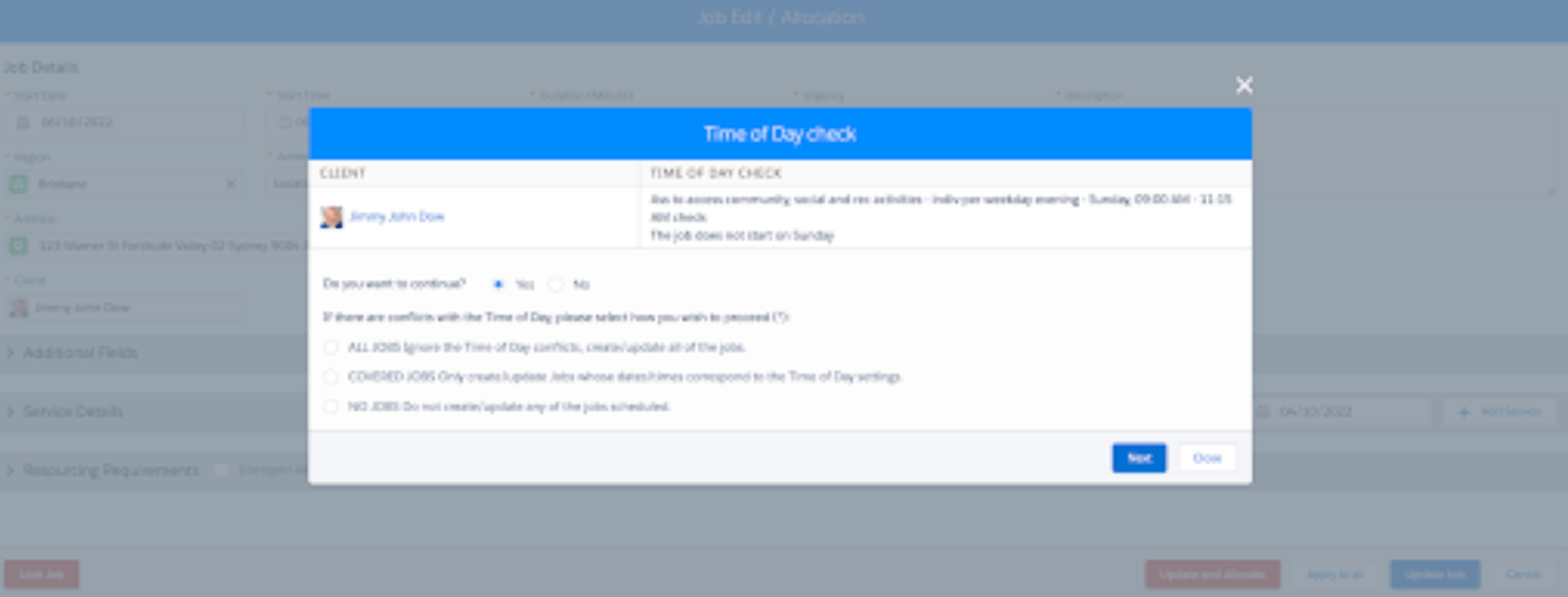
- If there is no violation on the original job, no warning will be displayed, and you can immediately select how to proceed with the options above.
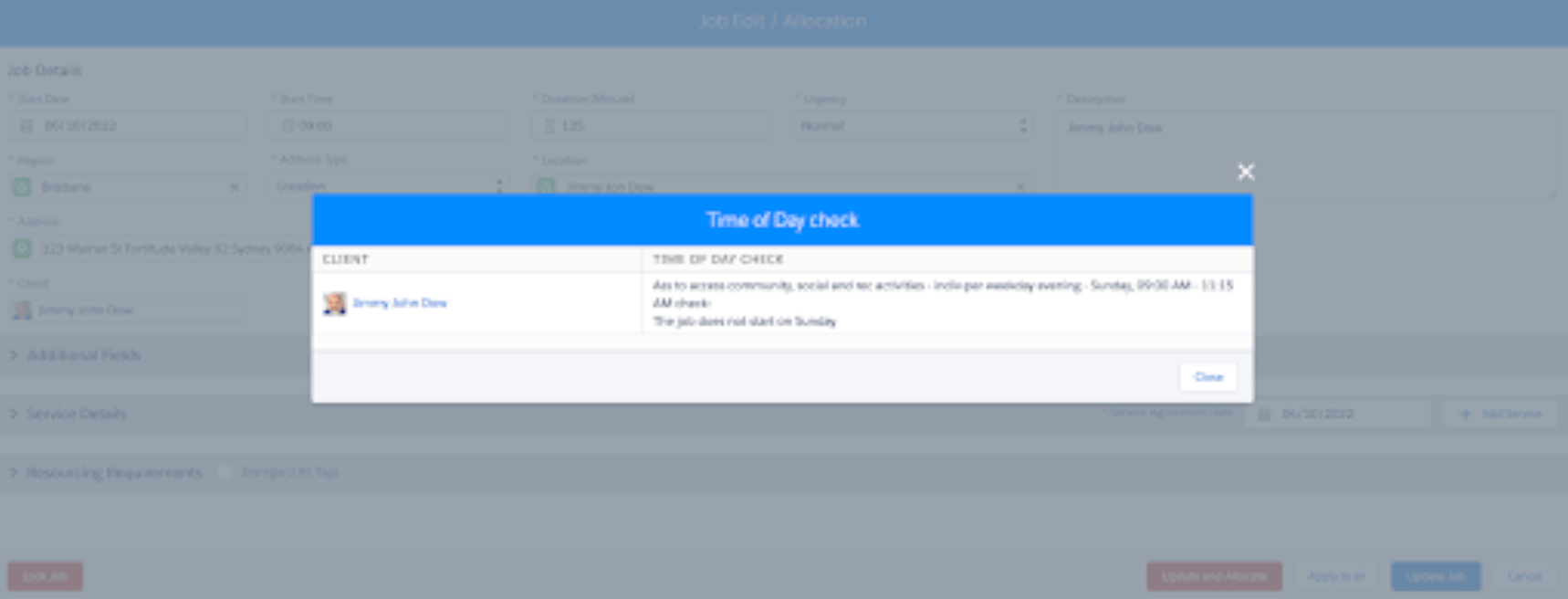
When Services_Time_Of_Day_Check is set toRestrict
The system will first check if the original job of the series violates Time of Day. If there is a violation, a popup will appear to inform, and you will not be able to continue the recurring job update process.
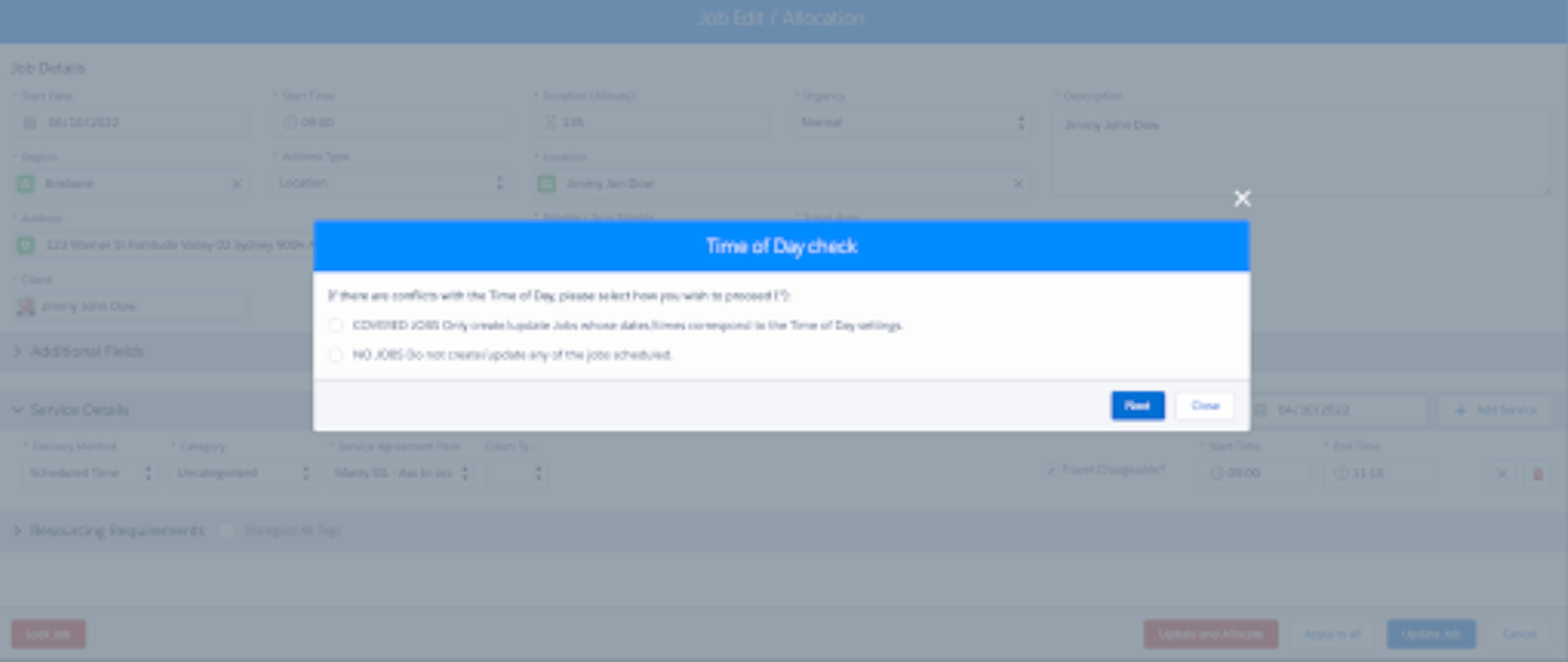
If there is no violation on the original job, you can immediately select how to proceed with the Time of Day violations on future jobs using the following options:
- COVERED JOBS: Only update recurring jobs whose dates/times correspond to the Time of Day on the related Service
- NO JOBS: Do not update any future recurring jobs besides the first job in the series.
When Services_Time_Of_Day_Check is set toNone, Time of Day will not be checked.
———————————————————————————————————————
A new custom setting Service_Time_Of_Day_Check_Email_Group has been introduced. This setting can be used to group the content of the Time of Day email with the following values:
- -1: No grouping
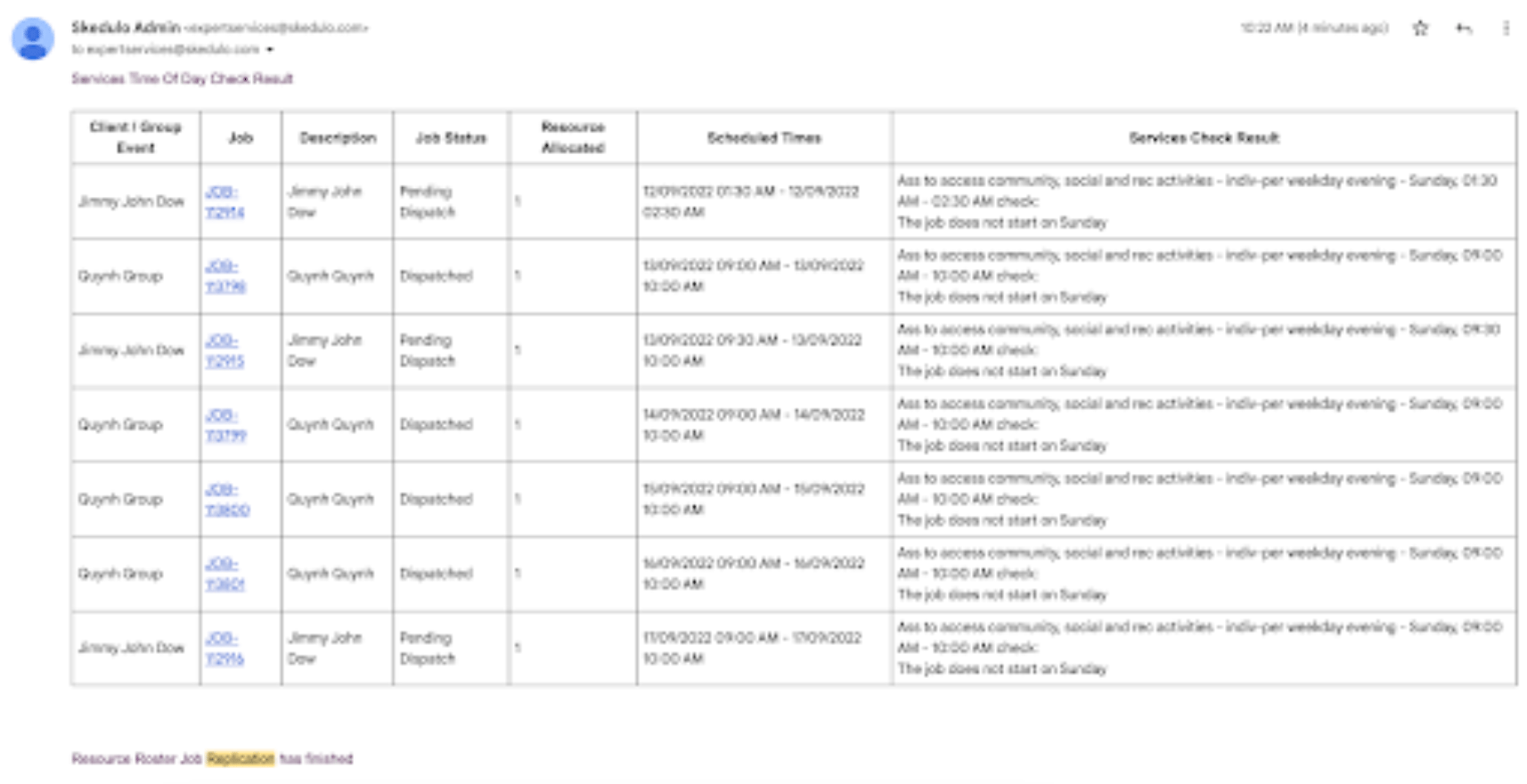
- 0: Client / Group Event
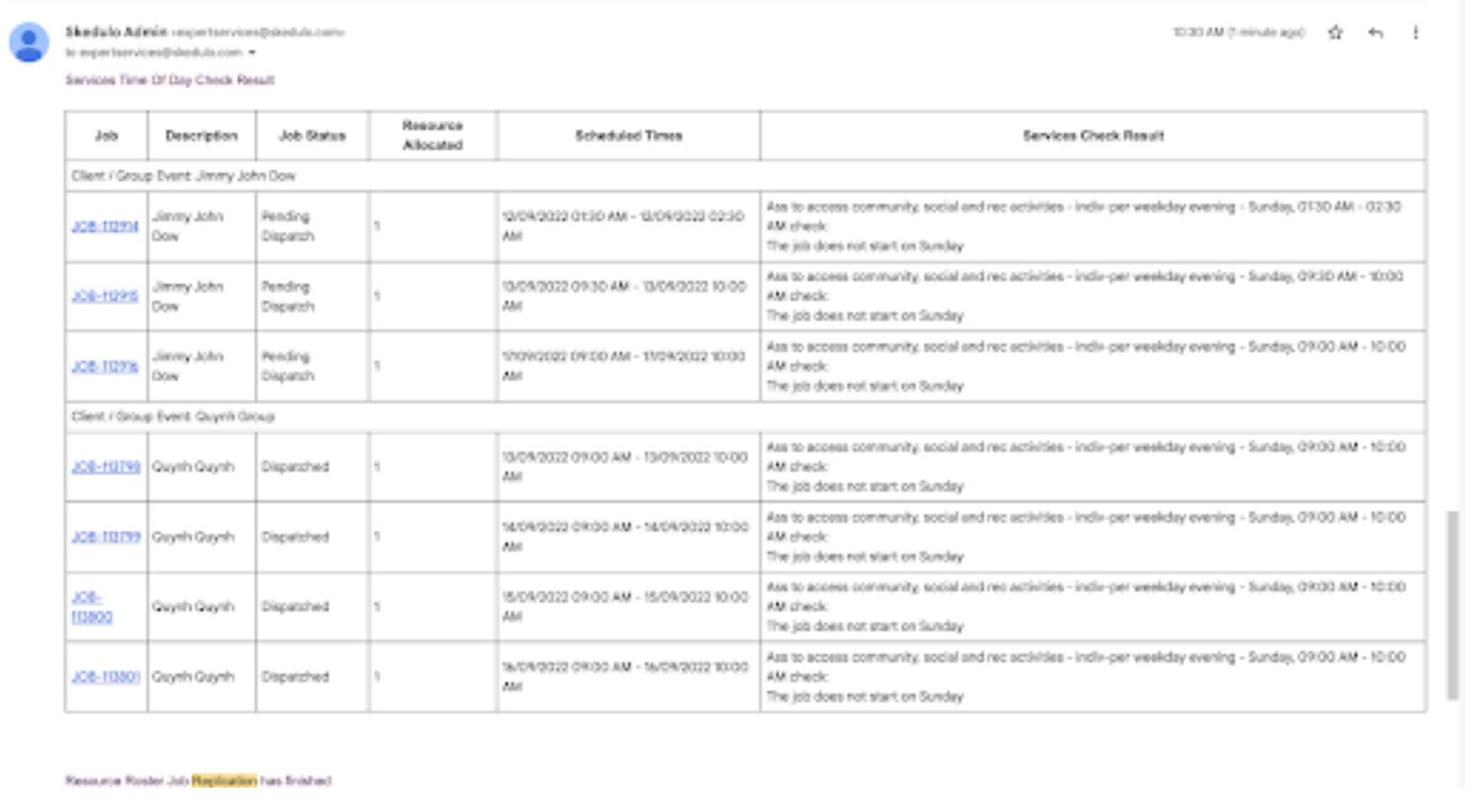
- 1: Job
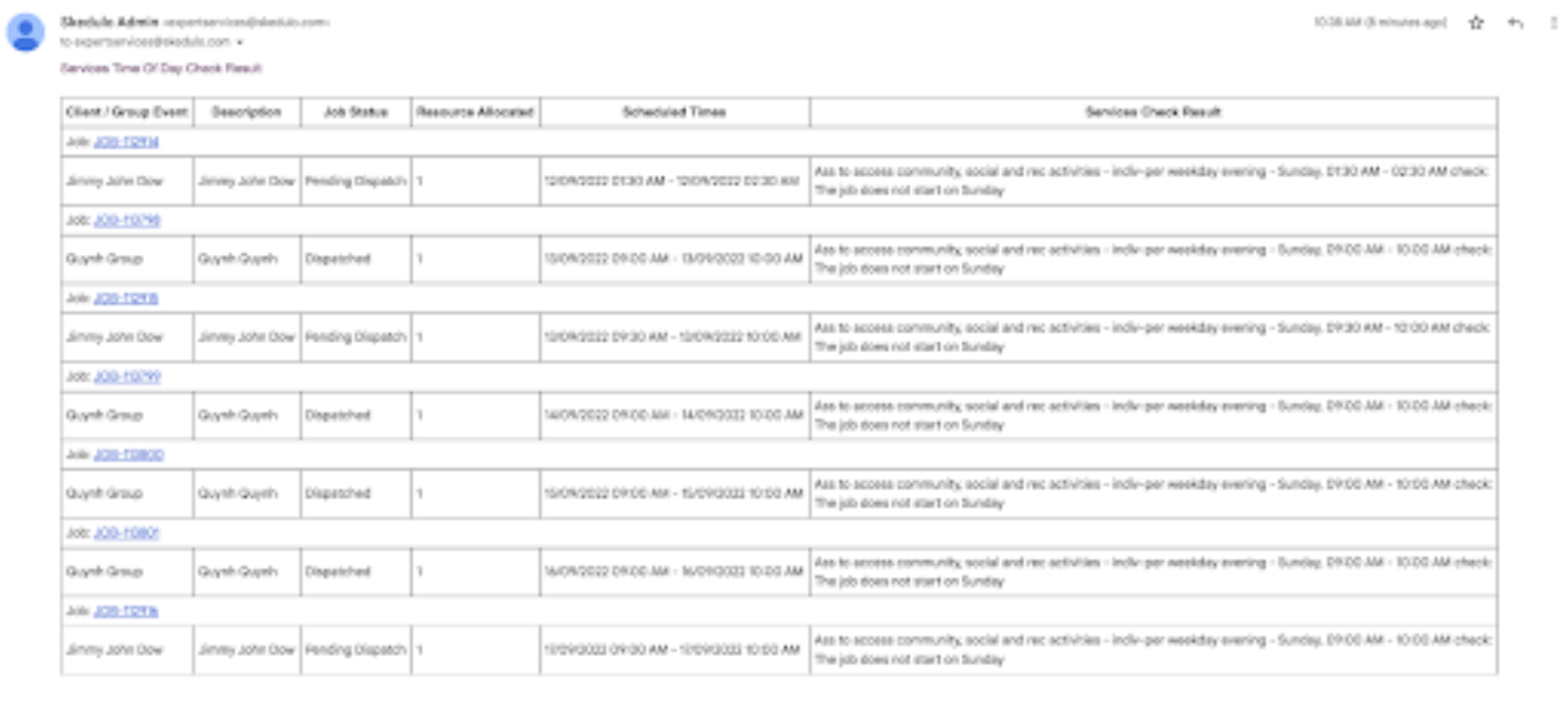
This setting can also store 2 additional custom values that can be used to group the content in a grouping of your choice

———————————————————————————————————————
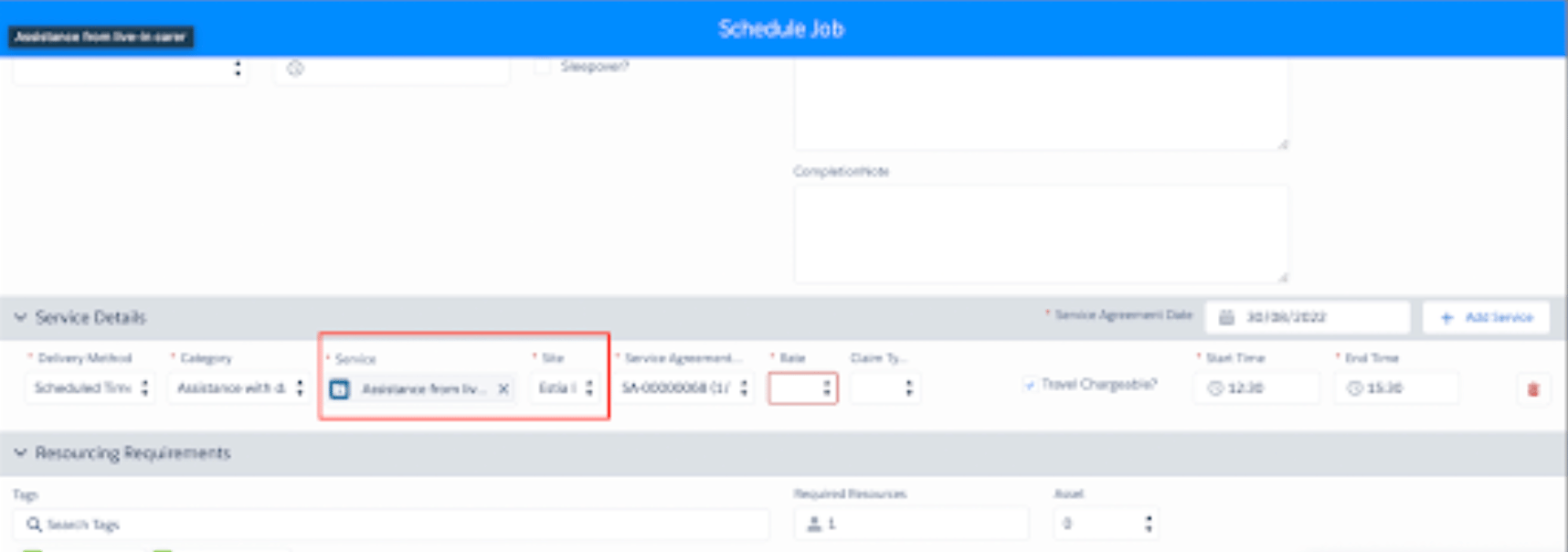
When scheduling a new single or group event job, only active Services and Sites are displayed to choose from.
———————————————————————————————————————
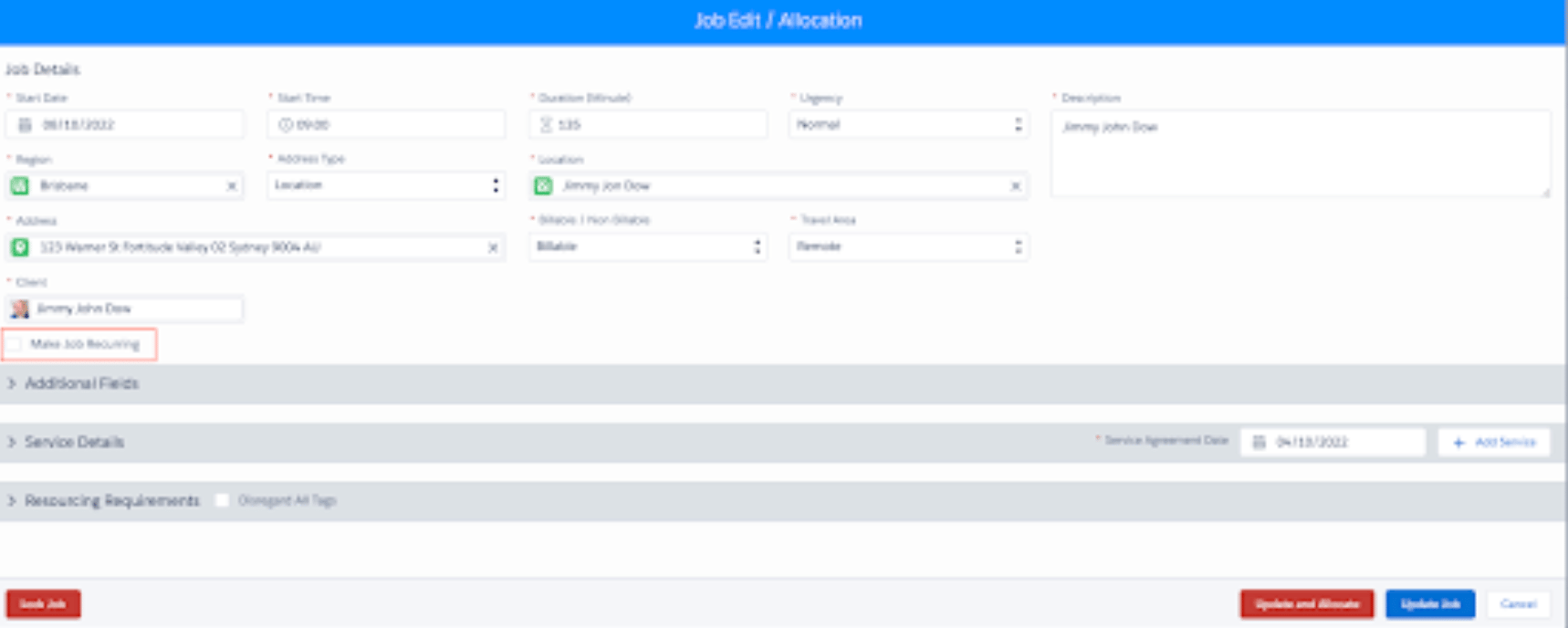
You now have the ability to edit and change an existing non-recurring job to a recurring job by checking the Make Job Recurring checkbox.
———————————————————————————————————————
The custom setting Valid_Service_Agreement_Statuses can now be used to set the status of Service Agreements. Only clients that have Service Agreements of this status will be shown when adding them to a group event.
For example, if Valid_Service_Agreement_Statuses is set to Current, only clients with at least one active Service Agreement will be available to add to a group event.
Issues Fixed
- An issue has been fixed where updating a job removes it from the base roster.
- Printing a roster no longer generates a database error on Roster Management Console.
Important
Additional Install Component: If you are upgrading from version 1.39 or less this version of the AU Healthcare Package requires the installation of an additional component. Installation is required to enable certain core functionality
Refer to the AUHC Additional Install Component page for further details and steps to perform the installation.
Manual Installation Links
Sandbox: https://test.salesforce.com/packaging/installPackage.apexp?p0=04t8W000003B8SP
Production: https://login.salesforce.com/packaging/installPackage.apexp?p0=04t8W000003B8SP
Please note: You must be a Salesforce Administrator to install this package.